

LTI Grade Sync Guide
A guide for syncing grades back to a learning management system from MathMatize.
Sync grades back to LMS
MathMatize allows you to sync grades back to your LMS for any task that has a grade associated with it. This includes "Assessment", "Practice" and "Poll Session" type tasks. To sync grades back to your LMS, you must first ensure that the MathMatize activity is linked to a gradebook item in your LMS. This can be done in two ways: linking to an existing gradebook item or creating a new gradebook item.
- Linking the MathMatize activity to an existing gradebook item/external tool activity:
If you have already created an external tool activity in your LMS, you can link it to the MathMatize activity by clicking the "Sync to LMS" button in the header area of the MathMatize activity and selecting the "find gradebook item" option from the dropdown menu. This will load a list of available gradebook items and external tool activities in your LMS. Select the external tool activity you want to link to.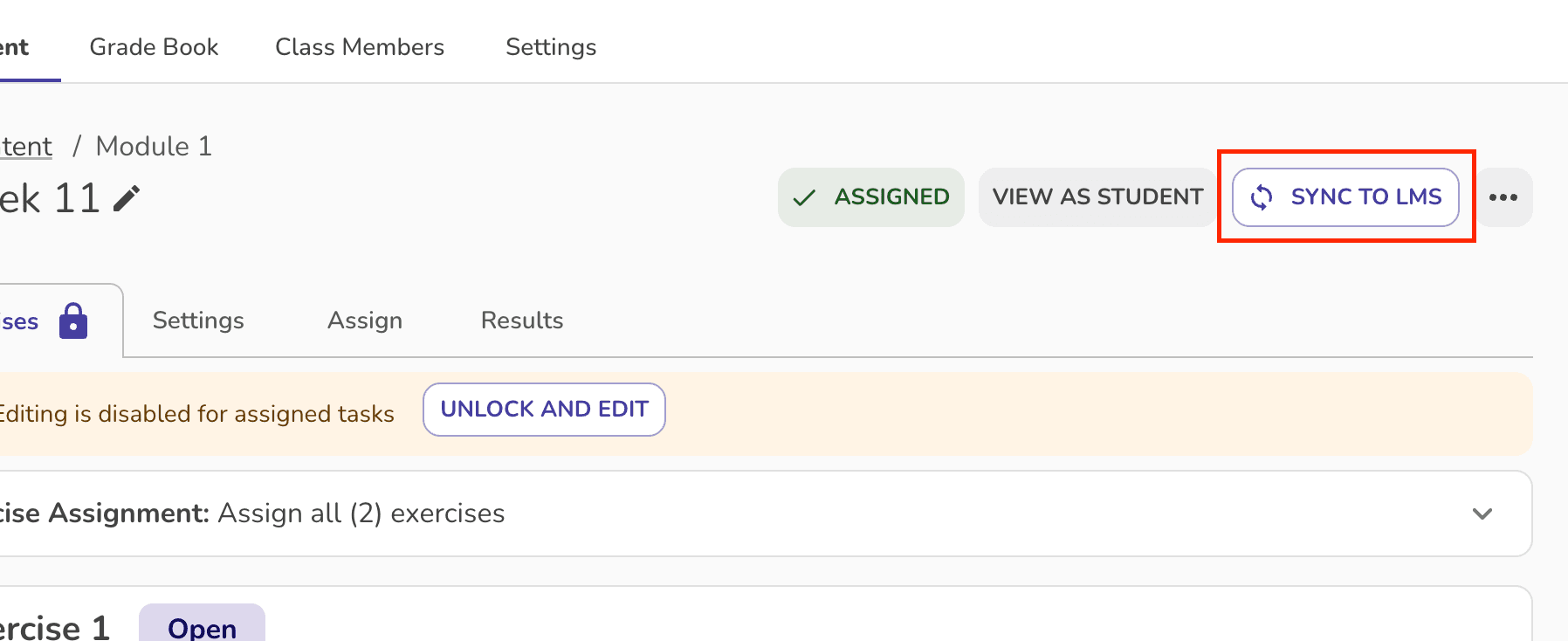
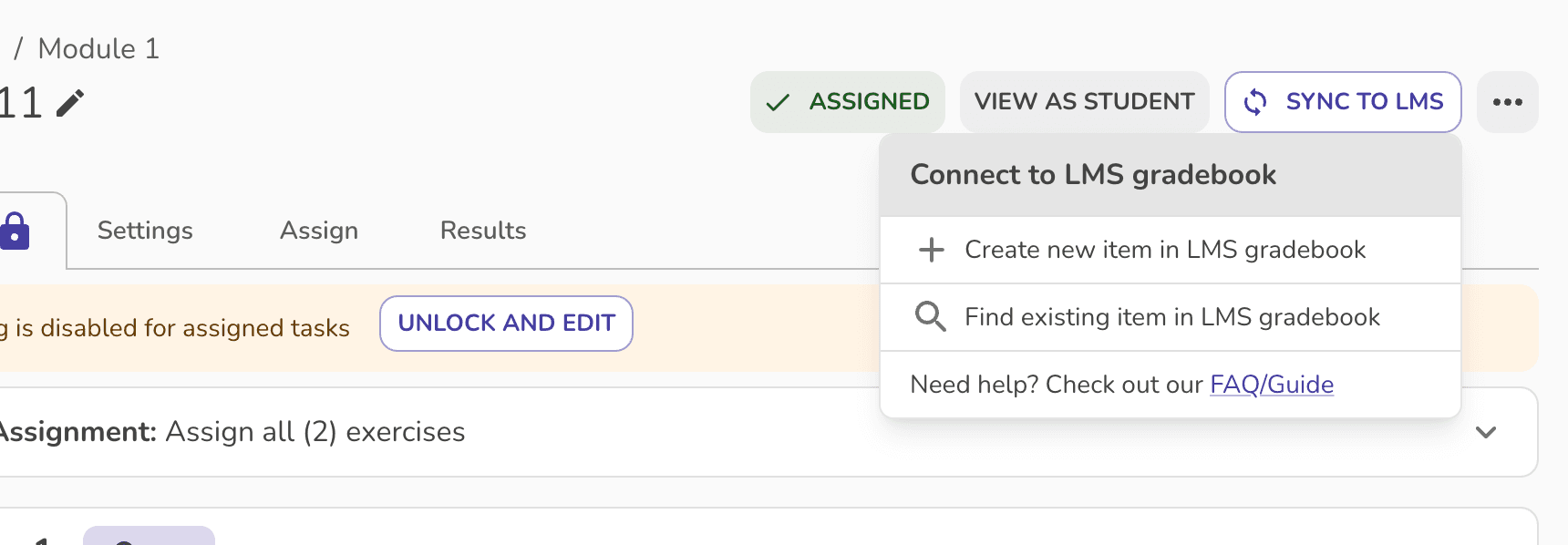
- Creating a new gradebook item: If you have not yet created an external tool activity in your LMS, you can do so from the MathMatize activity. Click the "Sync to LMS" button in the header area of the activity and select the "create new gradebook item" option from the dropdown menu. This will create a new gradebook item in your LMS that is linked to the MathMatize activity. Once you have linked the MathMatize activity to an external tool activity in your LMS, you can sync grades back by selecting the "Sync to LMS" button in the header area of the task page or by selecting the dropdown arrow and selecting "Sync Grades" from the dropdown.
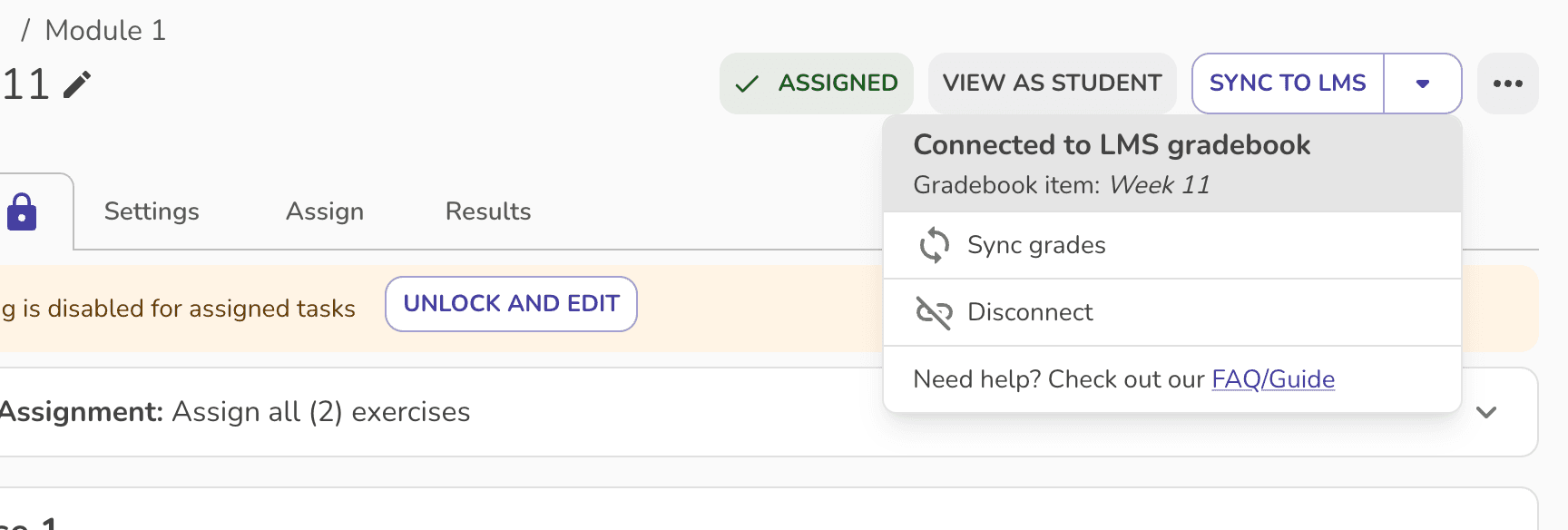
Depending on the size of the class, it may take a few minutes to sync the grades back to the LMS. You can leave this page and the sync will continue in the background.
FAQ
Why is creating a new LMS gradebook item disabled?
MathMatize needs a maximum possible score greater than zero before it can create an LMS gradebook item for an activity. This is the total a student could earn, not a student's current score. Students do not need to attempt the activity first, and a student earning zero does not prevent you from creating the item.
The maximum is calculated from the activity's questions, targets, and scoring settings. It is not a separate maximum-score field you need to fill in.
- Assessments: Check that the activity has questions that contribute to its score. An empty assessment, an assessment containing only explanations, or scoring settings that produce a zero total can leave it without a positive maximum. Add scored questions or adjust the relevant scoring settings.
- Live activities (poll sessions): The maximum depends on the graded polls that have been started in the activity's default session. Before any graded polls have started, or without a default session, the maximum is zero. For these activities, return to create the gradebook item after starting graded polls in the session.
- Practice activities: Check the goal and scoring settings. A zero target or point value can produce a zero maximum. The “Complete Questions” goal currently calculates a maximum of zero; if this applies, choose another goal appropriate for the activity before creating the gradebook item.
Partial scoring uses an LMS maximum of 100, so these zero-total restrictions do not disable creation for activities using partial scoring.
After updating and saving the activity, try Create new item in LMS gradebook again. If you already have an LMS gradebook item, Find existing item in LMS gradebook remains available. Linking an existing item does not change the activity's scoring settings or guarantee that grades are ready to sync.
Why can't I sync grades after linking an item?
Linking a gradebook item connects the activity to your LMS, but does not make its grades ready to send. The activity must have a positive maximum possible score calculated from its questions and scoring settings. A student's earned score of zero is valid and does not block syncing.
If the activity's maximum is zero, Sync Grades is disabled. Check the causes listed above and update the activity. For live activities, graded polls must have started in the default session. Linking another LMS item or choosing Sync anyway will not bypass this requirement.
This readiness check also applies to partial scoring: although an LMS item can be created with a maximum of 100, the MathMatize activity still needs a positive calculated score before grades can be synced. Other checks, such as whether students have completed the activity or poll rooms have closed, may still apply.
Some students' grades are not appearing in the LMS. What should I do?
If some students' grades are not appearing in the LMS, it may be due to the following reasons:
- The student is not enrolled in the LMS course. You can confirm whether the student's account is connected to the LMS by visiting the "Class members" tab in your MathMatize classroom. Confirm the "LTI" column is marked as "Yes".
- The student may have multiple accounts in MathMatize and they may have made progress in a personal account that is not connected to the LMS. Students can merge their accounts by visiting the "Account" tab in their MathMatize account settings while logged in with their LMS account.
No grades are appearing in the LMS grade book. If no grades are appearing, check the following:
- Is the activity in the LMS configured to accept grades?
- Does the activity have a maximum grade set?
I want to scale the grades that MathMatize sends If you'd like to scale grades to a value that is different from the default value MathMatize is sending, you can generally do this through your LMS by changing the maximum point value.
Some LMS systems prevent you from changing the maximum point value once grades have been added to the gradebook. If this applies to you, you can create an external tool activity with a name that matches the MathMatize activity you plan to send the grades from. When you set up the activity in your LMS, apply the desired maximum point value. When you sync grades, they will be scaled based on the maximum point value you set. For example, if you set a maximum point value of 5 and the student had a grade of 80% in MathMatize, they will get a point value of 4 in your LMS gradebook.
I need more help!
Please contact questions@mathmatize.com. We’re happy to help!